What to Do If Your iPhone Is Stuck on the Apple Logo
iPhone stuck on the Apple logo? Start with a force restart. If that fails, use recovery mode and choose Update, which keeps your data.

The short answer
Force restart first (Volume Up, Volume Down, then hold the Side button until the Apple logo appears). If it still sticks, connect the iPhone to a computer, put it in recovery mode and choose Update. Update reinstalls iOS without erasing your data. Restore erases everything, so use it only if Update fails.
Key takeaways
- A force restart fixes many Apple logo freezes and doesn't touch your data.
- If a progress bar is showing during a restore or migration, wait at least an hour before stepping in.
- In recovery mode, always choose Update first. It keeps your data.
- Restore erases the iPhone, so use it only if Update doesn't work.
- If recovery mode fails or a button is broken, the iPhone needs service.
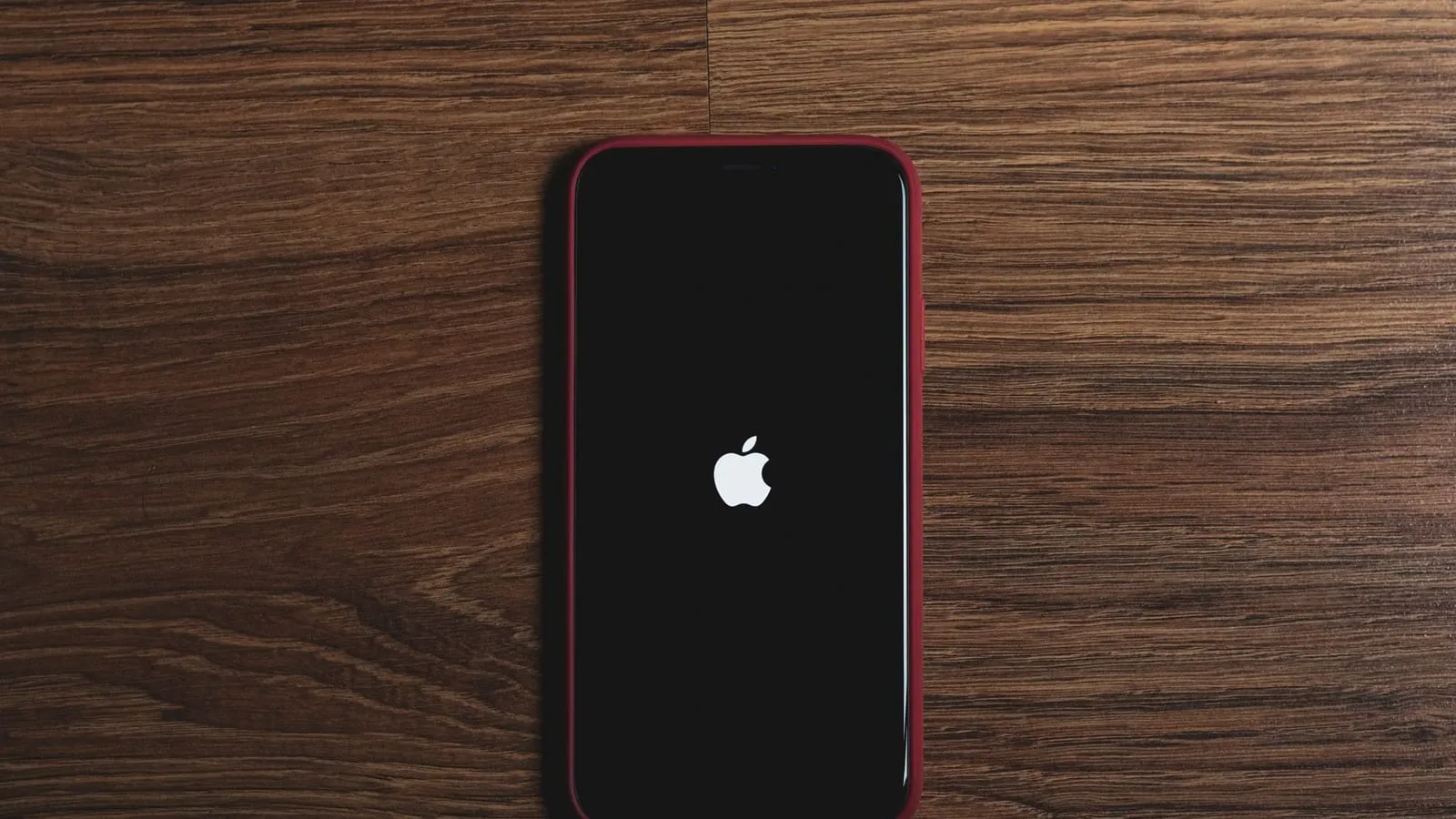
An iPhone frozen on the Apple logo is almost always a software problem, and most of the time you can fix it without losing anything. Work through the steps below in order: a force restart first, then recovery mode with the Update option, and only then Restore.
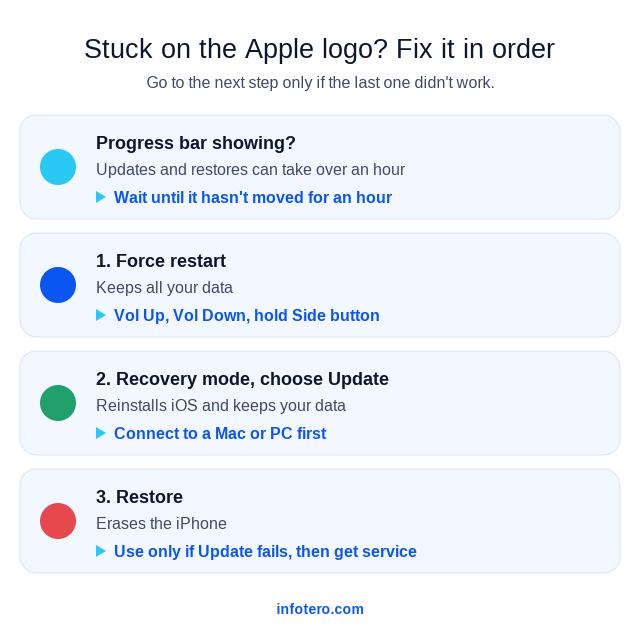
Is there a progress bar?
Look at the screen first. If you see the Apple logo with a progress bar under it, the iPhone may still be working, especially during an update, a restore or a transfer from an old phone. Apple says this can take more than an hour, so leave it plugged in and only step in once the bar hasn’t moved for at least an hour.
If there’s just the Apple logo with no progress bar and nothing changes for several minutes, go straight to the next step.
Step 1: Force restart
A force restart cuts power to the software and starts it fresh. It doesn’t delete any data. On iPhone 8 and every newer model, including iPhone SE (2nd generation and later):
- Press and quickly release the Volume Up button.
- Press and quickly release the Volume Down button.
- Press and hold the Side button.
- Release it when the Apple logo appears.
Do the first two presses quickly, then keep holding the Side button. It can take 10 to 20 seconds, and the screen may go black before the logo comes back. If the iPhone then starts normally, you’re done.
On older phones, iPhone 7 uses Volume Down and the Side button held together, and iPhone 6s or earlier uses the Home and Side (or top) buttons held together.
Step 2: Recovery mode, then Update
If the iPhone goes back to the Apple logo after a force restart, use recovery mode. You’ll need a computer and a USB cable.
Get the computer ready:
- Mac with macOS Catalina 10.15 or later: open Finder.
- Mac with macOS Mojave 10.14 or earlier: open iTunes.
- Windows PC: open the latest Apple Devices app or iTunes.
Put the iPhone in recovery mode while it’s connected to the computer:
- iPhone 8 and later: press and release Volume Up, press and release Volume Down, then press and hold the Side button. Keep holding through the Apple logo until you see the recovery mode screen (a computer and a cable).
- iPhone 7 and 7 Plus: hold Volume Down and the Sleep/Wake button together until the recovery mode screen appears.
- iPhone 6s and earlier: hold the Home and Sleep/Wake buttons together until the recovery mode screen appears.
When the computer asks what to do, choose Update. This reinstalls the latest iOS and keeps your data. The computer downloads the software first. If the download takes more than 15 minutes, the iPhone leaves recovery mode on its own. Let the download finish, then repeat the recovery mode steps.
Step 3: Restore, if Update doesn’t work
If Update fails or the iPhone gets stuck again, go back into recovery mode and choose Restore. This erases the iPhone and installs a clean copy of iOS. Afterwards you can set it up again and bring your data back from an iCloud or computer backup. That’s why it’s worth having one: see how to back up your phone properly.
If the computer can’t find your iPhone
- Update your Mac, or install the latest Apple Devices app on a PC.
- Try a different USB cable or port, and connect directly rather than through a hub.
- Repeat the recovery mode steps. Keep holding the Side button until the recovery screen shows, not just the Apple logo.
When to get it repaired
Contact Apple or an authorized repair shop if the iPhone still can’t be updated or restored in recovery mode, or if a button is broken or stuck and you can’t get into recovery mode at all. At that point the problem is likely hardware, and more home attempts won’t fix it.
Related: How to turn off your iPhone · How to free up storage on iPhone
Frequently asked questions
How long should I wait before fixing an iPhone stuck on the Apple logo?
If there's no progress bar, a few minutes is enough before you try a force restart. If a progress bar is showing during a restore or data migration, Apple says to wait until it hasn't moved for at least an hour.
Will I lose data if I fix my iPhone stuck on the Apple logo?
A force restart doesn't erase anything. In recovery mode, Update reinstalls iOS and keeps your data. Only Restore erases the iPhone.
How do I put an iPhone 15 or iPhone 16 into recovery mode?
Connect it to a computer, press and release Volume Up, press and release Volume Down, then press and hold the Side button until the recovery mode screen appears. The same steps work on every model from iPhone 8 onward.
What if my computer doesn't see my iPhone in recovery mode?
Update your Mac, or install the latest Apple Devices app or iTunes on a PC, try a different USB cable, then go through the recovery mode steps again.
Why did my iPhone leave the recovery mode screen?
If the iOS download takes more than 15 minutes, the iPhone exits recovery mode. Let the download finish on the computer, then repeat the recovery mode steps.
Sources
Facts in this article were checked against these sources. Spotted an error? Report a correction.
- 1If your iPhone freezes on the Apple logo - Apple Supportsupport.apple.com
- 2
- 3Force restart iPhone - iPhone User Guidesupport.apple.com