How to Free Up Storage on Your Phone (iPhone and Android)
Running out of phone storage? Learn how to free up space on your iPhone or Android device by deleting files, managing apps, and using cloud storage.

The short answer
To free up storage on your phone, start by checking your device's storage settings to identify what's taking up the most space. Then, delete large files, unused apps, and old messages. You can also move photos and videos to cloud storage or an external drive.
Key takeaways
- Check your phone's storage settings first to see what's using the most space.
- Delete large files, old messages, and apps you no longer use.
- Move photos and videos to cloud services or an external hard drive.
- Clearing app cache and data can also help free up space.
- Regularly cleaning your phone's storage can improve its performance.
The quickest way to free up storage is to go after the biggest items first: photos and videos, then apps you don’t use, then app caches, messages and downloads. You don’t need to pay for a cleaner app, since everything below uses tools already on your phone. Running low on space can also make a phone slower, so clearing it often helps speed too.
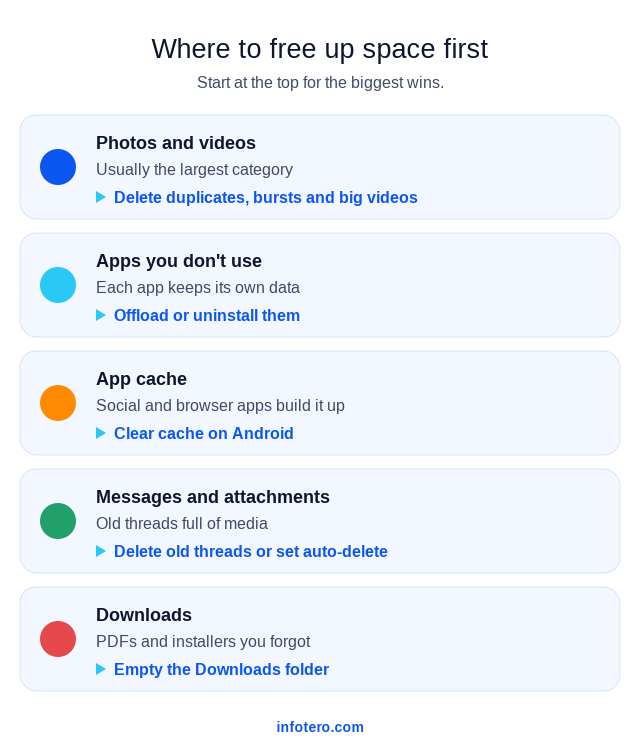
Step 1: See what’s using your space
Before you delete anything, check what’s taking up the room:
- iPhone: Settings > General > iPhone Storage
- Android: Settings > Storage (on Samsung: Settings > Battery and device care > Storage)
You’ll see a bar split into categories like apps, photos, messages and system data. Start with whichever is largest. Your phone may also suggest quick wins here, such as removing large message attachments. If anything is important, back up your phone before you start deleting.
Step 2: Clear out photos and videos
Photos and videos are usually the biggest users of storage, because modern cameras shoot high-resolution files.
On iPhone:
- Open Photos and look under Utilities for Duplicates, which lets you merge repeated copies.
- Check Bursts, Screenshots and Screen Recordings, which fill up quietly.
- Sort videos by size under Media Types > Videos and remove the large ones you don’t need.
- Empty Recently Deleted, or the space isn’t freed for 30 days.
On Android: open the Files app (Files by Google) and use the Clean tab. It suggests duplicates, old screenshots and blurry photos to delete.
To keep files smaller in the future, iPhone’s High Efficiency camera format (Settings > Camera > Formats) saves photos and videos in a compressed format without a visible loss in quality.
Step 3: Remove or offload apps you don’t use
Apps and their data are often the next biggest category.
- iPhone: Settings > General > iPhone Storage lists each app’s size and when you last used it. Tap an app and choose Offload App to remove the app but keep its data, or Delete App to remove both. You can also turn on automatic offloading of unused apps in the App Store settings.
- Android: Settings > Apps > See all apps shows each app’s size, and you can archive or uninstall from there. Look for an Unused apps list too. Turning on Manage app if unused lets Android archive apps you haven’t opened in a while.
Step 4: Clear app cache
Apps store temporary files in a cache, and social media and browser apps can build up a lot of it. On Android, go to Settings > Apps, pick the app, tap Storage, then Clear cache. This won’t log you out or delete your files. Clear storage (or Clear data) is different: it resets the app, so only use it if you’re happy to sign in again. iPhone doesn’t have a clear cache button for most apps. Offloading and reinstalling an app does the same job.
Step 5: Clean up messages and downloads
Message threads full of photos, videos and documents add up over time. Delete old conversations you don’t need, especially spam, or save important attachments elsewhere before deleting the thread. On iPhone you can also set messages to delete automatically after 30 days or a year under Settings > Apps > Messages > Keep Messages.
Then open your Files or Downloads folder and remove PDFs, installers and other downloads you no longer need.
Step 6: Move files off your phone
If you still need more room, move files somewhere else rather than deleting them:
- Cloud storage. Google accounts include 15 GB of free storage shared across Google services, including Google Photos. iCloud includes 5 GB free. On iPhone, turning on Optimise iPhone Storage for iCloud Photos keeps smaller versions on the phone and the full-size originals in iCloud. Dropbox and Microsoft OneDrive work too. Note that buying more cloud storage doesn’t add space to the phone itself; you still have to move or optimise the files.
- A computer or external drive. Connect your phone with a USB cable, copy the files across, then delete them from the phone. An external drive is a one-off cost with no subscription, and you can keep using it with future phones.
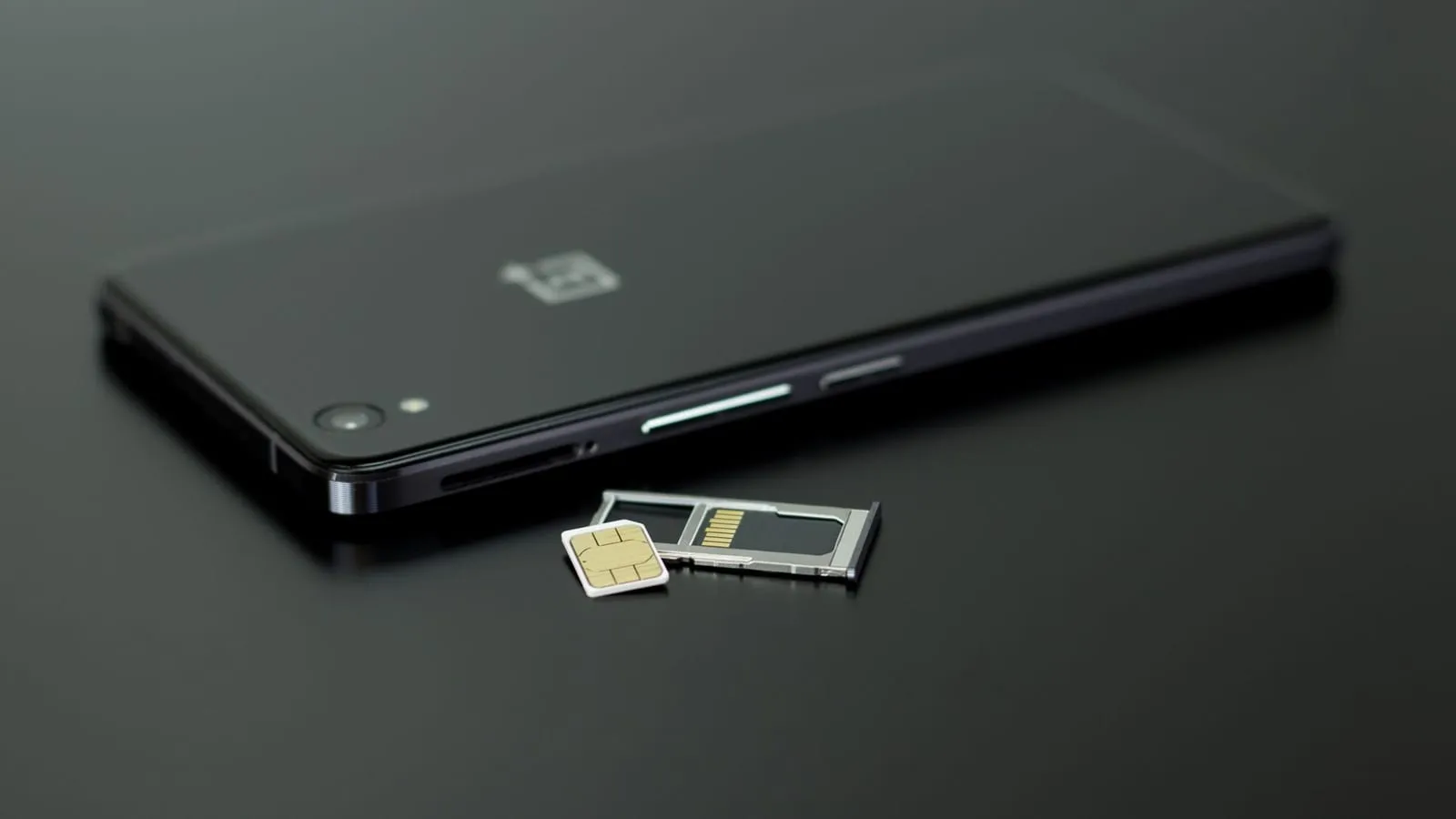
- A microSD card. Some Android phones have a card slot for extra storage.
Spending 10 to 15 minutes on this once a month is usually enough to stop the “Storage Full” warning from coming back.
Related: How to free up storage on iPhone · Why is my phone so slow?
Frequently asked questions
Will buying more cloud storage increase my phone's internal storage?
No, buying more cloud storage does not increase the physical storage on your phone itself. Cloud storage provides an online space to store files, which can then be removed from your device.
How often should I clean out my phone's storage?
Regularly cleaning out phone storage, such as for 10 to 15 minutes monthly, can help you save money and avoid frustration.
Can I save photos and videos without paying for cloud storage?
Yes, you can back up data to a laptop or an external storage device like a solid-state drive, which can be a long-term solution without subscription fees.
What is the 'Offload Unused Apps' feature on an iPhone?
The 'Offload Unused Apps' feature on an iPhone removes an app to free up space but keeps its data, allowing you to reinstall the app later without losing your information.
Sources
Facts in this article were checked against these sources. Spotted an error? Report a correction.
- 1
- 2Free up storage on your Android device - Android Helpsupport.google.com
- 3
- 4Google Photos: Edit, Organize, Search, and Backup Your Photosphotos.google.com
- 5How to Free Up Storage Space on Android & iPhonecompareandrecycle.co.uk
- 6