How to Stop Pop-Up Ads on Your Phone (Android and iPhone)
Learn how to stop pop-up ads on your phone, whether they appear in your browser or from third-party apps. Covers Chrome, Samsung Internet and Safari.

The short answer
To stop pop-up ads on your phone, first check your browser settings to block them by default. If ads persist, identify and uninstall any recently installed third-party apps that might be generating them. You should also review and disable unwanted website notifications.
Key takeaways
- Most pop-up ads originate from recently installed third-party apps.
- Browser settings in Chrome and Samsung Internet allow you to block pop-ups and manage notifications.
- Uninstalling problematic apps, sometimes in Safe mode, can eliminate persistent ads.
- Malware can cause unwanted ads, so ensure Google Play Protect is enabled.
- Some legitimate websites use pop-ups for content, not just ads.
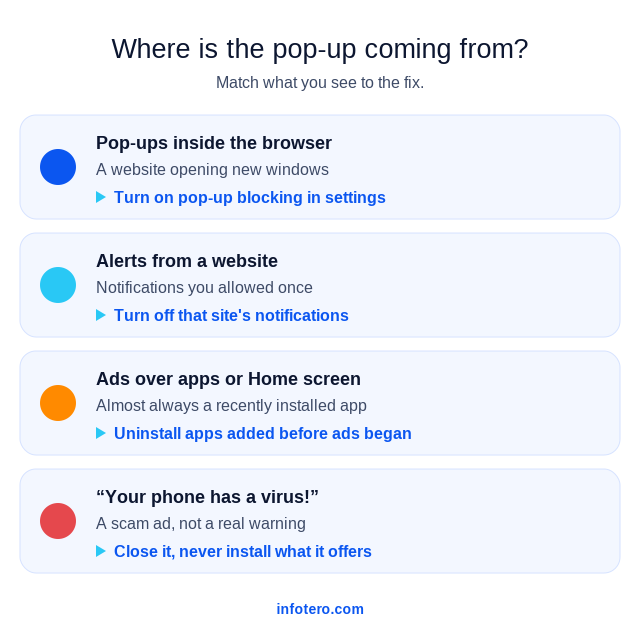
The fix for pop-up ads depends on where they appear. Ads inside your browser are stopped with a browser setting. Alerts that look like ads but come from websites are notifications you allowed at some point. Ads that show up over other apps or on your Home screen almost always come from a third-party app you installed recently. Work out which one you’re seeing, then use the matching fix below.
Block pop-ups in your browser
Chrome on Android. Chrome blocks pop-ups by default. If you still see them, open Chrome, tap More options (three dots) > Settings > Site settings > Pop-ups and redirects, and make sure the switch is off so pop-ups are blocked. If pop-ups continue after this, they’re probably website notifications or come from an app, both covered below.
Samsung Internet. Open the app, go to Menu > Settings > Privacy dashboard, and turn on Block pop-ups. The app also supports ad blockers under Menu > Ad blockers, where you tap Install next to the one you want. Not all of them are free.
Safari on iPhone. Go to Settings > Apps > Safari and turn on Block Pop-ups. On older iOS versions, Safari is listed directly in Settings instead of under Apps.
Turn off website notifications
Many “pop-ups” are really notifications from websites you once allowed to send them. They can look exactly like ads and appear even when the browser is closed. In Chrome on Android, go to Settings > Site settings > Notifications. You can turn notifications off for all sites, or find the specific site under the list and turn off its permission.
Chrome may also remove notification permission automatically from sites you haven’t visited in a while. If you want notifications from a site you trust, you can allow them again from the same menu.
Find and remove the app causing it
If ads appear over other apps, on your lock screen or on the Home screen, a third-party app is the most likely cause. Developers sometimes use aggressive ads like these to make money. Think about what you installed just before the ads started, especially free games, cleaners, flashlight or wallpaper apps, and uninstall them.
A few tips if it’s hard to find:
- Check “Display over other apps”. On Android, apps with this permission can draw on top of everything else. Search for “Display over other apps” or “Appear on top” in Settings and turn it off for any app that doesn’t need it.
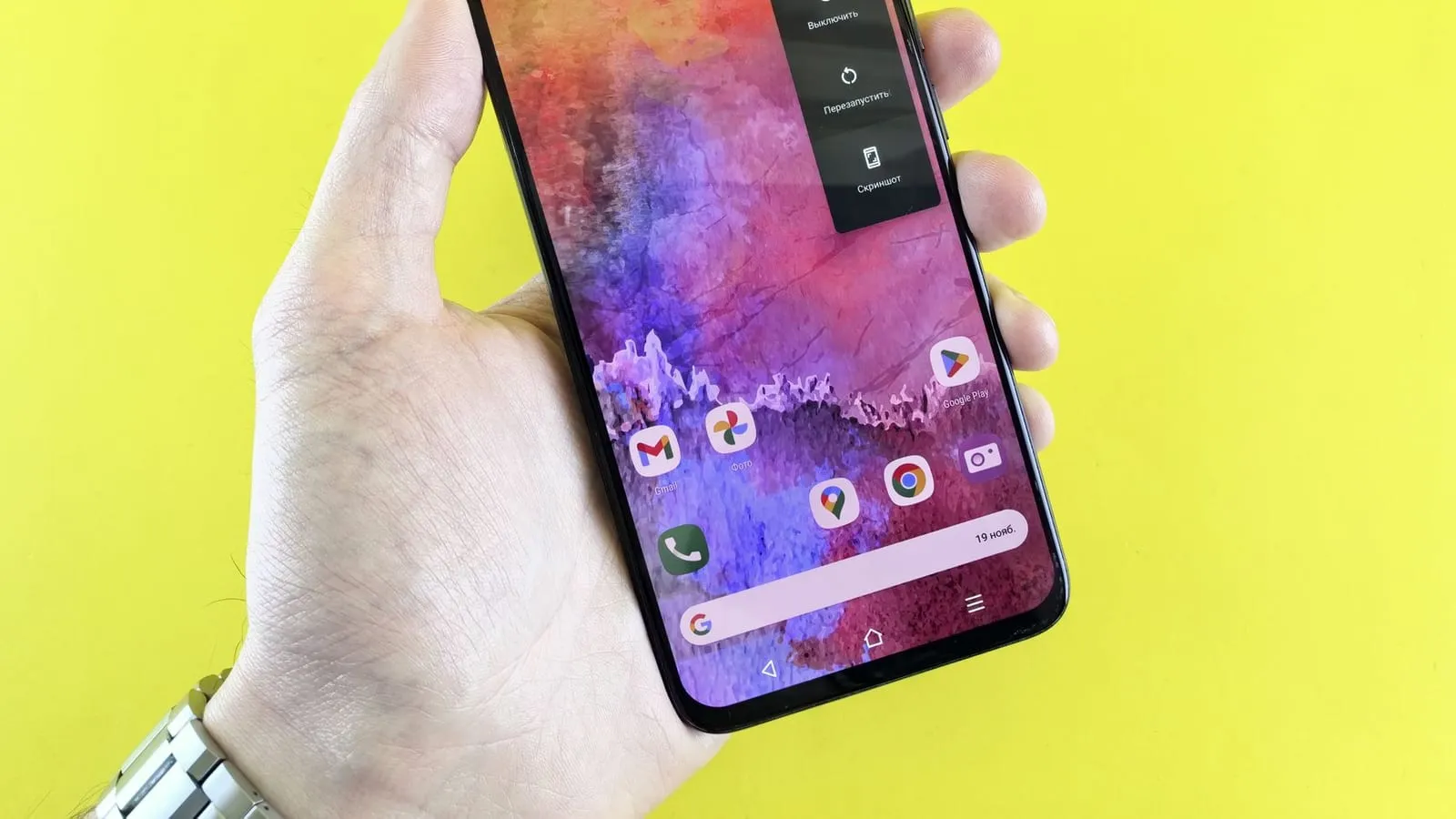
- Use Safe mode. On Samsung Galaxy and many other Android phones, Safe mode stops all third-party apps from running. If the ads stop in Safe mode, an app is the cause, and you can uninstall it from Settings while still in Safe mode. Our guide on getting a Samsung out of Safe mode explains how to leave it afterwards.
- Remove admin rights first. If an app won’t uninstall, it may have device administrator privileges. Find the device admin apps option in your security settings, turn it off for that app, then uninstall it.
Check for malware
Persistent pop-ups can be a sign of adware or other malware, and some pop-up ads try to install malware themselves. On Android, make sure Google Play Protect is turned on so it scans your apps for threats. Uninstall any app you don’t recognize, then restart the phone. Never tap a pop-up that says your phone is infected and tells you to install a “cleaner”. Those warnings are scams. See how to tell if your phone has a virus for the signs that point to real malware.
Allow pop-ups for a site you trust
Not every pop-up is bad. Some legitimate sites, like banking or booking sites, open content in a pop-up window. In Chrome, when a pop-up is blocked on a page you trust, tap Always show to allow pop-ups from that site only. In Samsung Internet, you can turn off Block pop-ups in the Privacy dashboard, or turn off an installed ad blocker under Menu > Ad blockers. It’s safer to allow single sites than to turn pop-up blocking off everywhere.
Related: How to spot fake shopping websites and scams · Why is my phone so slow?
Frequently asked questions
Why do I keep getting pop-up ads on my phone?
Most pop-up ads on your phone are caused by a third-party app that you recently installed. They can also come from website notifications or malware.
Can pop-up ads be dangerous?
Yes, pop-up ads can be a potential source of malware, which can make it difficult to use your phone and compromise its security.
How do I know which app is causing the pop-ups?
You can identify the app by recalling recently installed apps. On Samsung Galaxy phones, entering Safe mode can help, as it prevents third-party apps from running, allowing you to narrow down the source.
Will blocking pop-ups affect legitimate websites?
Some legitimate websites use pop-up windows to display content, not just ads. You can usually allow pop-ups for specific sites in your browser settings if needed.
Sources
Facts in this article were checked against these sources. Spotted an error? Report a correction.
- 1Manage pop-up ads on your Galaxy phonesamsung.com
- 2
- 3Block or allow pop-ups in Chrome - Android - Google Chrome Helpsupport.google.com
- 4How to Stop Pop-Up Ads on Your Android Phone - Bitdefenderbitdefender.com